

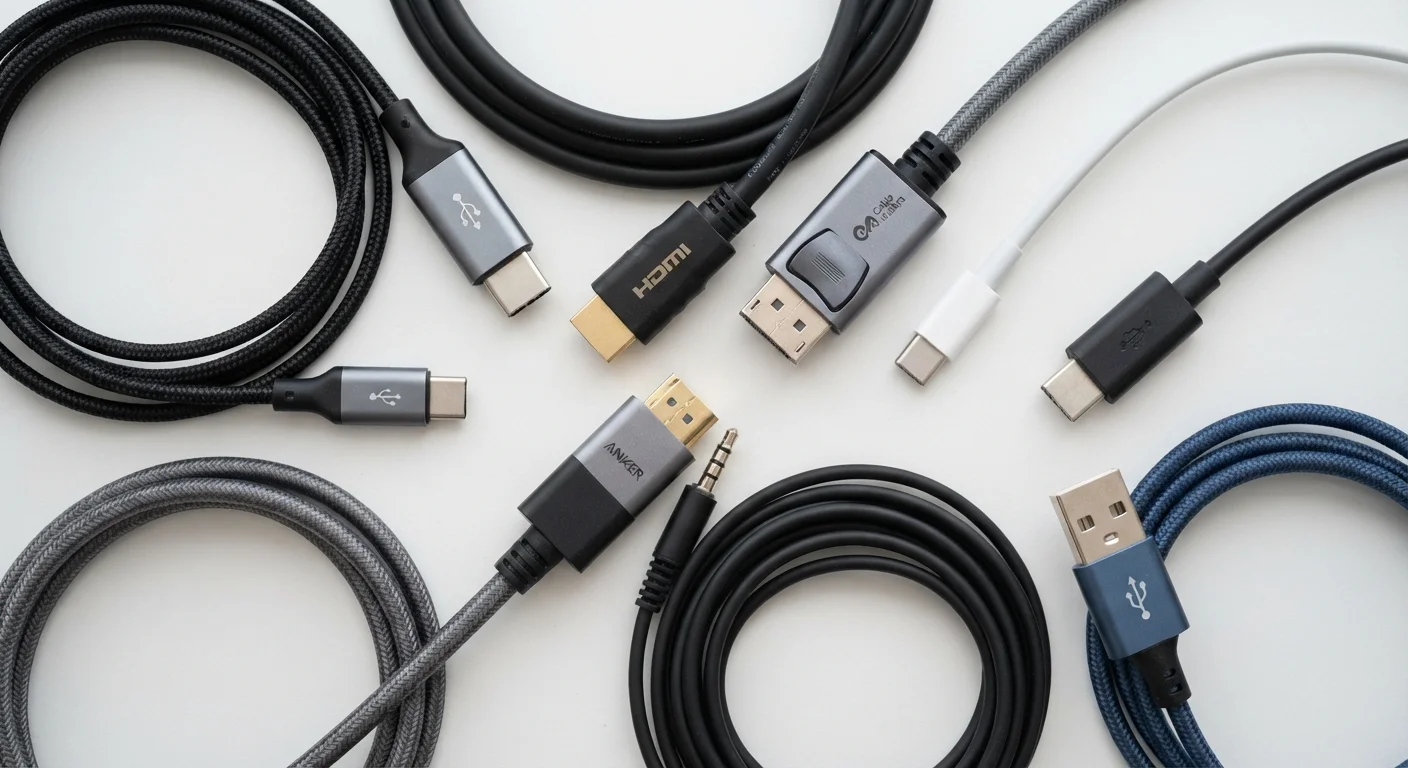
Why Connector Literacy Matters
You've likely stared at the side of a laptop or the back of a TV and wondered which port does what — and whether the cable in your hand will actually fit. Connector standards evolve constantly, and the same physical shape can carry very different capabilities depending on the version. This reference guide covers the connectors you'll encounter most often, what each one does, and where it typically appears so you can make confident decisions before you buy a device, a cable, or an adapter.
For a deeper dive into what your display can do once you're connected, see the Consumer's Field Guide to Display Specs. And if you're sorting out home networking, the Wi-Fi vs. Ethernet guide explains when a wired connection still has the edge.
| USB-C max data speed (USB 3.2 Gen 2x2) | 20 Gbps (USB Implementers Forum specification) |
| Thunderbolt 4 bandwidth | 40 Gbps (Intel Thunderbolt 4 specification) |
| HDMI 2.1 max resolution | 10K (supports 4K/120 Hz, 8K/60 Hz) (HDMI Forum HDMI 2.1 specification) |
| DisplayPort 2.1 max bandwidth | 80 Gbps (UHBR20 mode) (VESA DisplayPort 2.1 specification) |
| Gigabit Ethernet speed | Up to 1 Gbps (IEEE 802.3ab standard) |
| USB Power Delivery max output | 240 W (USB PD 3.1) (USB Implementers Forum, USB PD 3.1 specification) |
USB Connectors: A, B, C, and Everything Between
USB-A is the rectangular plug that defined a generation — it's on nearly every charger, flash drive, and older peripheral. USB-A supports USB 2.0 (up to 480 Mbps) through USB 3.2 Gen 2 (up to 10 Gbps) depending on the cable and host port. The blue color coding on a port usually signals USB 3.x speeds.
USB-B is the square-ish plug found on printers and some audio interfaces. It's less common on consumer gear today but still standard in professional peripherals.
Micro-USB was the dominant smartphone connector for most of the 2010s. It's now largely replaced by USB-C on new devices but remains common on older accessories, e-readers, and budget electronics.
USB-C is the small, oval, reversible connector now standard on most laptops, Android phones, tablets, and many accessories. Crucially, the shape alone tells you nothing about speed or power — a USB-C port may support USB 2.0, USB 3.2, or Thunderbolt 4, depending on the device. Always check the spec sheet rather than assuming capability from the port shape alone.
Alt Mode
A USB-C feature that allows the port to carry non-USB signals — such as DisplayPort or HDMI video — over the same physical connector. Not all USB-C ports support Alt Mode; check your device's specifications.
Bandwidth
The maximum rate at which data can be transferred through a connection, usually expressed in gigabits per second (Gbps). Higher bandwidth allows faster data transfers and higher-resolution video signals.
USB Power Delivery (USB PD)
A charging standard that allows USB-C cables and ports to negotiate and deliver higher wattages than basic USB charging. It enables a single USB-C cable to charge anything from earbuds to laptops.
Daisy Chaining
Connecting multiple monitors in a chain from a single video output port. DisplayPort and Thunderbolt support daisy chaining; standard HDMI ports do not.
TRRS Connector
A 3.5 mm audio plug with four conductors (Tip, Ring, Ring, Sleeve) that carries stereo audio plus a microphone signal. Distinguishable from a standard stereo TRS plug by having three black rings instead of two.
Protocol vs. Connector
A connector is the physical shape of the plug and port; a protocol is the set of rules governing data transfer. The same connector (e.g., USB-C) can carry multiple different protocols, which is why specs matter more than shape alone.
Video and Display Connectors
HDMI (High-Definition Multimedia Interface) carries both video and audio over a single cable. It's the standard on TVs, projectors, game consoles, and most consumer monitors. HDMI 2.0 supports 4K at 60 Hz; HDMI 2.1 extends that to 4K at 120 Hz and 8K at 60 Hz, which matters for high-refresh gaming monitors and newer televisions. The most common form factor is Standard HDMI (Type A); Mini HDMI (Type C) and Micro HDMI (Type D) appear on cameras and some tablets.
DisplayPort is predominant in PC monitors and graphics cards. DisplayPort 1.4 handles 4K at 144 Hz and supports daisy-chaining multiple monitors from a single port. DisplayPort 2.1, found on newer hardware, supports 8K and beyond. A Mini DisplayPort variant (physically identical to the Thunderbolt 1/2 port) is common on older Macs.
VGA and DVI are legacy analog and early digital standards, respectively. VGA (the chunky blue trapezoid) carries analog video only, limiting it to lower resolutions. DVI can carry digital or analog signal depending on the variant. Both are being phased out but persist on older monitors, projectors, and office hardware.
DisplayPort vs. HDMI: Which Should You Use?
Both carry high-quality digital video and audio, but they suit different devices. HDMI is nearly universal on televisions and consumer AV equipment; DisplayPort is standard on PC monitors and graphics cards and generally supports higher refresh rates at the same resolution. If your monitor and graphics card both have DisplayPort, it's often the stronger choice for desktop gaming or multi-monitor setups. For connecting a PC to a TV, HDMI is typically the more compatible option.
Thunderbolt, Ethernet, and Audio Jacks
Thunderbolt is a high-bandwidth protocol developed by Intel, typically using a USB-C physical connector (Thunderbolt 3 and 4). A Thunderbolt 4 port delivers up to 40 Gbps, supports dual 4K displays or one 8K display, and can power a laptop at up to 100 W. Look for the lightning bolt icon next to the port to identify it. Because Thunderbolt uses the USB-C shape, a Thunderbolt cable works in a USB-C port at USB speeds — but a standard USB-C cable will not unlock Thunderbolt speeds.
Ethernet (RJ-45) is the wide, rectangular network jack. Standard Gigabit Ethernet delivers up to 1 Gbps; 2.5G and 10G ports are increasingly common on premium hardware. Many thin laptops omit the port entirely, requiring a USB-C or Thunderbolt adapter. Learn more about when a wired connection makes sense in the Home Internet 101 guide.
3.5 mm audio jack — often labeled a headphone jack or aux port — carries analog stereo audio and, in the four-conductor TRRS version, microphone input as well. It remains common on desktop computers, car stereos, and some smartphones, though many phones have removed it in favor of digital audio over USB-C or wireless.
40 Gbps
Thunderbolt 4 peak transfer rate
According to Intel's Thunderbolt 4 specification, this bandwidth is roughly eight times faster than USB 3.2 Gen 1.
48 Gbps
HDMI 2.1 total bandwidth
The HDMI Forum specifies 48 Gbps of total bandwidth for HDMI 2.1, enabling uncompressed 4K at 120 Hz and 8K at 60 Hz.
240 W
Max USB Power Delivery output (PD 3.1)
The USB Implementers Forum's USB PD 3.1 specification raised the ceiling to 240 W, sufficient to power high-performance laptops over a single USB-C cable.
Choosing Cables and Adapters Without Getting Burned
The connector on the end of a cable is just a physical format — it does not guarantee the performance the port is capable of. A USB-C cable rated for USB 2.0 will bottleneck a USB 3.2 device. For charging, the wattage a cable is rated to carry determines how fast it can charge; using an underpowered cable with a high-wattage charger is safe but slow. For video, make sure the cable version matches the resolution and refresh rate you need — an older HDMI cable may not carry HDMI 2.1 signals reliably even if both ends fit.
When buying adapters, confirm the adapter supports the full protocol, not just the connector shape. A USB-C to HDMI adapter, for example, only works if the USB-C port on your device supports DisplayPort Alt Mode or Thunderbolt — not all do. Reading the device's spec sheet before purchasing an adapter prevents wasted money and frustration.
The Internet & Connectivity hub has additional resources for sorting out home networking decisions once your devices are connected.
USB Implementers Forum (USB-IF) Official Specifications
The authoritative source for all USB standards, including USB4, USB-C, and USB Power Delivery. Useful for verifying connector and cable capability claims before purchasing.
VESA DisplayPort Specification Reference
The Video Electronics Standards Association publishes the official DisplayPort specifications, including bandwidth tables and version compatibility details for monitors and adapters.
HDMI Forum Specification Archive
The HDMI Forum's documentation explains version differences between HDMI standards, helping consumers confirm whether a cable or port supports their intended resolution and refresh rate.
Intel Thunderbolt Technology Overview
Intel's official Thunderbolt resource explains the difference between Thunderbolt versions, compatibility with USB-C, and what to look for when identifying a Thunderbolt-capable port.
The content on this site is for informational purposes only and is not a substitute for professional advice. Always consult a qualified professional for guidance specific to your situation.