

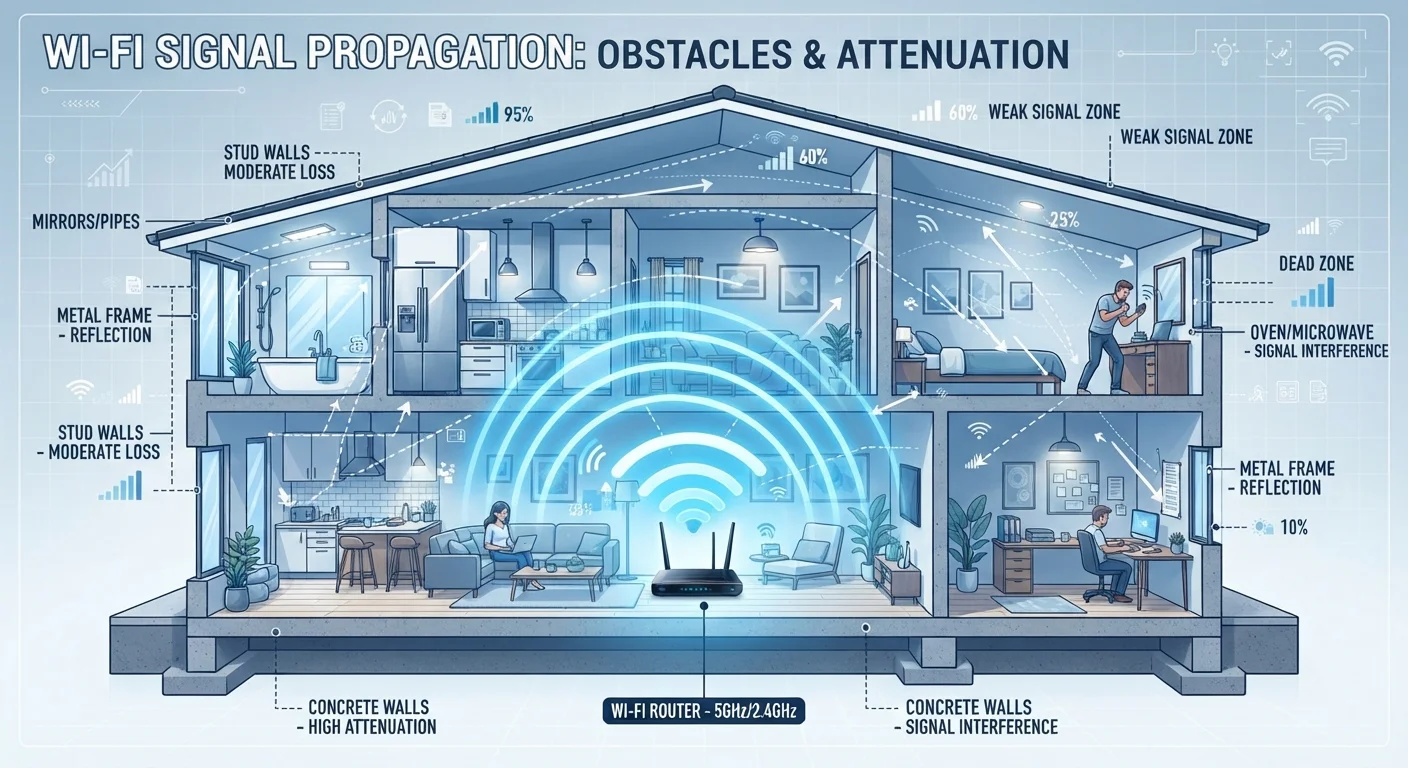
How Wi-Fi Signals Actually Travel
Wi-Fi doesn't travel through your home in a straight, unobstructed beam — it radiates outward in all directions from your router like a bubble of radio waves. As those waves travel, they naturally lose strength with distance, even in open air. But in a typical home, distance is rarely the main problem. What sits between you and the router is.
Radio waves interact with every material they encounter. Some materials allow the signal to pass through with minimal loss; others reflect, absorb, or scatter it so severely that the signal arriving on the other side is a fraction of what left the router. This is why a device ten feet away but behind a thick concrete wall can have a weaker connection than one forty feet away in an open hallway.
~50%
Signal loss passing through one concrete wall
RF engineering studies consistently show that a single concrete or cinderblock wall can reduce Wi-Fi signal strength by half or more, depending on thickness and density.
2x
Coverage range advantage of 2.4 GHz over 5 GHz
The 2.4 GHz band typically covers roughly twice the range of the 5 GHz band under similar real-world home conditions, according to general RF propagation principles.
30–40%
Households reporting consistent Wi-Fi dead zones
Consumer connectivity surveys have found that a significant share of American households experience at least one area of poor wireless coverage inside their homes.
The Building Materials Doing the Most Damage
Not all walls are equal when it comes to wireless signal. Here's how common construction materials rank in terms of how much they disrupt Wi-Fi:
- Drywall and wood: Relatively minor signal loss. Most standard interior walls in American homes are drywall over wood studs, which is why signals often travel well between rooms on the same side of the house.
- Plaster and lathe: More disruptive than drywall, especially in older homes where plaster may contain wire mesh reinforcement.
- Brick and concrete block: Significant signal loss. Common in older construction and basement or garage walls.
- Reinforced concrete: One of the worst offenders. Found in many apartment buildings, it can nearly eliminate a signal.
- Metal: The most disruptive material of all. Metal studs, foil-backed insulation, radiant barrier sheathing, and even large metal appliances can reflect signals entirely, creating hard dead zones.
- Low-E glass: The metallic coating on energy-efficient windows reflects Wi-Fi signals, which is why glass walls or large windows of this type can create unexpected coverage gaps.
If your home was built with any of these materials, expect to see their effects in your coverage map. Router placement becomes even more critical when your floor plan is filled with signal-absorbing materials.
Frequency Bands and Why They Behave Differently
Modern routers broadcast on two main frequency bands: 2.4 GHz and 5 GHz. The difference between them has a direct effect on how well your signal reaches different parts of your home.
The 2.4 GHz band travels farther and passes through walls more effectively, but it carries less data and is more susceptible to interference from neighboring networks and household devices. The 5 GHz band is significantly faster but loses strength much more quickly over distance and struggles to penetrate dense materials.
In practical terms: if your device automatically connects to the 5 GHz band but you're two rooms away from the router with a concrete wall in between, you may get a slower or less stable connection than if it had connected to 2.4 GHz. Some routers let you manually assign devices to a specific band, which can help in situations like this.
Match Your Band to Your Distance
If your router broadcasts separate network names for 2.4 GHz and 5 GHz, connect devices in distant or wall-separated rooms to the 2.4 GHz network. Reserve the 5 GHz network for devices close to the router that need higher bandwidth, such as for streaming or video conferencing.
Household Interference You Might Not Suspect
Physical barriers aren't the only culprits. Several common household devices actively compete with or disrupt your Wi-Fi signal:
- Microwave ovens: Operate at roughly 2.45 GHz — nearly identical to the 2.4 GHz Wi-Fi band. When a microwave runs, it can noticeably degrade nearby Wi-Fi performance.
- Baby monitors and cordless phones: Older models often use the 2.4 GHz band and can create interference patterns.
- Bluetooth devices: Also operate in the 2.4 GHz range. A crowded home with many Bluetooth speakers, headphones, and wearables can contribute to congestion.
- Neighboring Wi-Fi networks: In apartment buildings or dense neighborhoods, dozens of overlapping networks can compete for the same channels, slowing everyone down.
If your connection drops specifically at certain times of day or near particular appliances, interference — not a dead zone — may be the real issue. A room-by-room diagnostic approach can help you distinguish between the two.
Interference vs. Structural Dead Zones
Interference and structural dead zones feel similar but have different causes and solutions. A dead zone caused by building materials tends to be consistent regardless of time of day or nearby device activity. Interference from appliances or neighboring networks often produces variable, time-dependent slowdowns. Running a simple speed test at different times — and in different locations — can help you tell them apart.
What You Can Actually Do About It
Once you understand why dead zones exist, addressing them becomes more straightforward. A few practical paths forward:
- Reposition your router: Central placement, elevated off the floor, away from metal objects and appliances, makes the single biggest difference in whole-home coverage. Many people tuck routers in corners or inside cabinets, which immediately limits reach.
- Check your band settings: If your router supports band steering or lets you manually set preferred bands per device, use that control to route far-away devices to 2.4 GHz.
- Consider a mesh system: For larger homes or layouts with multiple problematic barriers, a mesh network places multiple nodes throughout your home, each acting as a full access point. Mesh systems aren't always necessary, but in the right home they eliminate dead zones more effectively than any single-router setup.
- Run a cable where it counts: For a device that never moves — a desktop, a smart TV, a gaming console — a wired Ethernet connection bypasses all of these wireless challenges entirely. Wired connections still have real advantages in specific scenarios.
Frequently Asked Questions
Even a single wall can significantly reduce signal strength, especially if it contains dense materials like concrete, brick, or metal framing. The signal weakens with every obstacle it passes through. Router placement and the frequency band in use also play a major role.
Yes, each wall absorbs and reflects some of the signal energy. The material matters too — drywall causes modest interference, while concrete or tile can block signals dramatically. Multiple walls compound the effect.
Absolutely. Microwave ovens operate on a frequency very close to the 2.4 GHz Wi-Fi band and can cause noticeable interference when running. Baby monitors, cordless phones, and Bluetooth devices are also common culprits.
Use 2.4 GHz for devices that are farther from the router or separated by walls — it penetrates obstacles better. Use 5 GHz when you're close to the router and want faster speeds for bandwidth-heavy tasks like streaming or video calls.
Repositioning your router is often the most impactful first step. If the layout of your home makes central placement impossible, a mesh Wi-Fi system or a wired access point can extend reliable coverage to problem areas without the limitations of a basic extender.
Yes, floors — especially those with concrete, steel reinforcement, or radiant heating systems — are among the hardest barriers for Wi-Fi signals to pass through. Multi-story homes frequently benefit from a dedicated access point or mesh node on each floor.
The content on this site is for informational purposes only and is not a substitute for professional advice. Always consult a qualified professional for guidance specific to your situation.